
Home › Install
Why Installing Lucky 97 Correctly Matters
Most problems players run into with the Lucky97 APK aren't caused by the app itself — they come from a rushed installation. A half-finished download, a forgotten permission toggle, or a phone that's nearly out of storage can each turn a two-minute setup into a frustrating loop of error messages. This guide walks through the entire install process for the Lucky 97 game on Android in careful, numbered detail, and then covers the fixes for every common hiccup along the way, from "Install blocked" warnings to the dreaded "App not installed" message.
Whether you're installing lucky 97 for the very first time, updating an older copy, or setting the app up again on a new device, the steps below apply. We'll also cover what your phone needs in terms of RAM and Android version, how the app treats battery and mobile data, and how to remove it cleanly if you ever decide to. If you haven't grabbed the file yet, start on our download for PC page for desktop options, or head straight to the register page once the app is running to create your account.
Before You Begin: What You Need
A Genuine Download Link
Only use a source you trust for the Lucky97 APK file. Avoid random forum links or file-sharing pages promising bonus codes bundled with the installer.
Free Storage Space
Have at least 500MB to 1GB of free internal storage before you start, so Android has room to unpack the package during installation.
A Stable Connection
Wi-Fi or a strong mobile data signal reduces the chance of a corrupted or partial download, which is the leading cause of parse errors.
A Few Minutes of Patience
Rushing through permission prompts is the most common reason installs fail. Read each screen once before tapping through it.
Step 1: Enabling "Install Unknown Apps" (Unknown Sources)
Android blocks installation of any app that didn't come from the Google Play Store by default. This is a security measure, not a sign that anything is wrong with the Lucky97 APK — it simply means you need to grant permission once for the specific app you're using to open the file, whether that's your browser, your file manager, or a chat app you used to receive the download.
- Open your phone's Settings app.
- Search for or navigate to Apps, then Special app access (on some phones this is under Security or Privacy instead).
- Tap Install unknown apps.
- Select the app you'll use to open the downloaded file (usually your browser, like Chrome, or your Files app).
- Toggle Allow from this source to the on position.
If you try to install the Lucky97 APK before completing this step, Android will interrupt you with an "Install blocked" screen and offer a shortcut straight to this settings page, so you can also handle it reactively the first time you attempt to install lucky 97 without pre-configuring anything.
Step 2: Understanding the Google Play Protect Prompt
After you tap the downloaded APK file, Android's built-in Play Protect scanner often runs a quick automatic check and may show a warning screen because the app comes from outside the Play Store. This is standard behavior for any APK installed this way and doesn't necessarily mean the file is unsafe — it simply means Google hasn't reviewed it through its usual store pipeline.
- When the Play Protect scan finishes, you may see a message such as "This app was blocked because it contains harmful software" or a milder "Unsafe app blocked" notice.
- Tap More details if the option appears.
- Choose Install anyway (unsafe) only if you downloaded the file from a link you trust.
- If no such option appears and the scan simply completes without blocking, continue straight to the install screen.
Some phone brands layer their own extra security software on top of stock Android, so you might see a second manufacturer-specific warning after the Play Protect one. The process is the same: review the source, then confirm you want to proceed if you trust it.
Step 3: Clearing Storage Space First
A shortage of free storage is one of the sneakier reasons an installation stalls or fails outright with a vague error. Android needs headroom to decompress the APK package, write app files, and create data folders, all before you ever open the app.
- Go to Settings > Storage to see how much free space remains.
- If space is tight, clear the cache of apps you rarely use under Settings > Apps > [app name] > Storage > Clear cache.
- Move photos and videos to cloud storage or an SD card if your phone supports one.
- Delete old downloaded files sitting in your Downloads folder, including any previous Lucky97 APK files you no longer need.
- Empty your device's recycle bin or recently-deleted folders in gallery and file manager apps, since these can silently hold onto gigabytes.
Aim for at least double the size of the download free before installing, giving Android room to work without your storage bar turning red mid-install.
Step-by-Step: Installing the Lucky97 APK
With unknown sources enabled and storage cleared, the actual install for lucky 97 is short. Follow these steps in order:
- Open your browser and download the Lucky97 APK file from your trusted link, waiting for the download to finish fully before doing anything else.
- Open the Notifications shade and tap the completed download, or open your Files app and browse to the Downloads folder.
- Tap the APK file to begin the install prompt.
- Approve any Play Protect or manufacturer security prompt if it appears, as covered above.
- Review the permissions list Android shows you and tap Install.
- Wait for the progress bar to complete — this usually takes a few seconds to a minute depending on your phone's speed.
- Tap Open on the confirmation screen, or find the new Lucky 97 icon on your home screen or app drawer and tap it.
- Allow the app a moment to load its opening screen and any first-run assets before interacting with it.
That's the full install lucky 97 flow from download to first launch. If any step throws an unexpected error, jump to the troubleshooting sections further down this page.
Step 4: First-Launch Permissions
The first time you open the app, Android will ask you to approve a handful of runtime permissions. What's requested can vary by device and Android version, but here's what to expect and why each one is typically requested:
Storage / Files & Media
Used to save downloaded promotional images, cache game assets locally, and let you upload a profile picture or payment screenshot when needed.
Notifications
Lets the app alert you about bonus events, deposit confirmations, or account activity without you having to keep it open in the foreground.
Network / Wi-Fi State
Allows the app to check your connection quality so it can adjust asset loading during weaker signal periods.
Camera (optional)
Only relevant if you choose to scan a QR code, such as an invite code or a payment confirmation, rather than typing it manually.
Once permissions are set, you'll typically land on a welcome or login screen. New players should head to the register page for a full walkthrough of creating an account, while returning players can log straight in with their existing phone number or ID.
Updating Lucky 97 to the Latest Version
Because the APK isn't distributed through an app store with automatic background updates, refreshing to a newer build is a manual process — but it's a simple one, and it's worth doing regularly to pick up bug fixes and interface improvements.
- Download the newer Lucky97 APK file the same way you downloaded the original.
- Open the new file directly; there is no need to remove the current app first in almost all cases.
- Android will recognize the matching package name and offer an Update button instead of a fresh install prompt.
- Tap Update and wait for the process to finish.
- Open the app as normal — your existing login session and any saved preferences should carry over untouched.
Reinstalling Lucky 97 Without Losing Your Account
A common worry is that removing and reinstalling the app will wipe out progress, balance, or account access. In practice, your Lucky 97 account is stored on the game's servers and tied to your login credentials — usually a phone number, username, or ID — rather than to files sitting on your device. That means a clean reinstall is generally safe as long as you know your login details.
- Before uninstalling, confirm you remember the phone number, username, and password used for your account, or have access to the phone number for verification if needed.
- Uninstall the current app from Settings > Apps > Lucky 97 > Uninstall, or long-press the icon and drag it to uninstall.
- Download a fresh copy of the Lucky97 APK.
- Install it following the step-by-step process above.
- Open the app and log in using your existing credentials rather than registering a new account.
- Confirm your balance, referral history, and settings appear as expected once logged in.
If you're moving to a new phone entirely rather than reinstalling on the same device, the process is identical — download, install, and log in with your existing details on the new hardware.
Fixing "Parse Error" During Installation
A parse error message means Android tried to read the APK package and couldn't make sense of its contents. This is almost always a file problem, not an account problem, and it's usually fixable in a few minutes.
- Delete the downloaded file completely from your Downloads folder.
- Check your Android version under Settings > About phone > Android version and compare it against the minimum requirement listed in the table below.
- Reconnect to a stable Wi-Fi network rather than a spotty mobile connection.
- Download the Lucky97 APK file again from your trusted source, letting it finish completely without switching apps mid-download.
- Try opening the freshly downloaded file to install again.
If the parse error persists after a clean redownload, the file extension may have been altered by your browser or a file-compression tool. Confirm the file ends in .apk and hasn't been renamed or zipped along the way.
Fixing "App Not Installed" Errors
This message is Android's catch-all for several different underlying problems. Work through these causes in order:
- Insufficient storage: Free up space as described in the storage cleanup section, then retry.
- Signature conflict: If an older version was installed from a different source with a different signing key, uninstall the old version completely before installing the new one.
- Corrupted download: Delete and redownload the file, ideally over Wi-Fi, and verify the download shows as fully complete before opening it.
- Conflicting package name: Check whether any other app on your phone shares a similar internal identity, which can occasionally happen with unofficial repackaged copies; uninstall anything suspicious first.
- Restricted user profile: If your phone has multiple user profiles or work-profile restrictions, switch to the main profile and try installing there.
Device Requirements
The Lucky97 APK is built to run comfortably on a wide range of Android hardware, including budget devices common across Pakistan. Use this table as a general guide before installing:
| Requirement | Minimum | Recommended |
|---|---|---|
| Android version | Android 6.0 (Marshmallow) or later | Android 9.0 or later |
| RAM | 2GB | 3GB or more |
| Free storage | 500MB available | 1GB or more available |
| Screen resolution | 720 x 1280 (HD) | 1080 x 2340 (Full HD+) |
| Internet connection | 3G mobile data | 4G or Wi-Fi |
| Processor | Quad-core, entry-level | Octa-core, mid-range or higher |
If your device falls below the minimum RAM or Android version, the app may still install but can run slowly, with delayed loading in busy screens like the full game lobby or during live activity events.
Battery and Data Saving Tips
Real-time game lobbies with animations, live odds, and promotional pop-ups can be more demanding on battery and data than a simple app. A few adjustments keep both in check:
Lower Screen Brightness
Display brightness is typically the single biggest battery draw during any extended app session, more than the game logic itself.
Close Background Apps
Other apps running in the background compete for RAM and battery, which can make Lucky 97's own animations feel less smooth.
Use Wi-Fi When Possible
Switching to Wi-Fi for extended sessions reduces mobile data consumption, especially when browsing image-heavy sections like the game lobby or promotions.
Limit Background Notifications
If you don't need instant alerts, reduce notification frequency in the app's settings to cut down on periodic background network checks.
Update Regularly
Newer builds often include efficiency improvements, so keeping the app updated can indirectly help with both battery life and data usage.
Avoid Auto-Play Video
If the app offers a setting to disable auto-playing promotional videos, turning it off can meaningfully cut mobile data use.
Uninstalling and Removing Data
If you want to remove Lucky 97 from your device — whether temporarily to free up space or because you're switching phones — the process is straightforward and gives you control over what's deleted.
- Open Settings > Apps and find Lucky 97 in the list.
- Tap Storage if you want to clear cached files or app data without removing the app itself first.
- Tap Clear cache to remove temporary files only, keeping your local settings intact.
- Tap Clear data if you want to reset the app to a blank state while keeping it installed.
- To remove the app entirely, tap Uninstall from the app info screen, or long-press the app icon on your home screen and choose the uninstall option.
- Confirm the uninstall prompt when it appears.
Screenshot Gallery
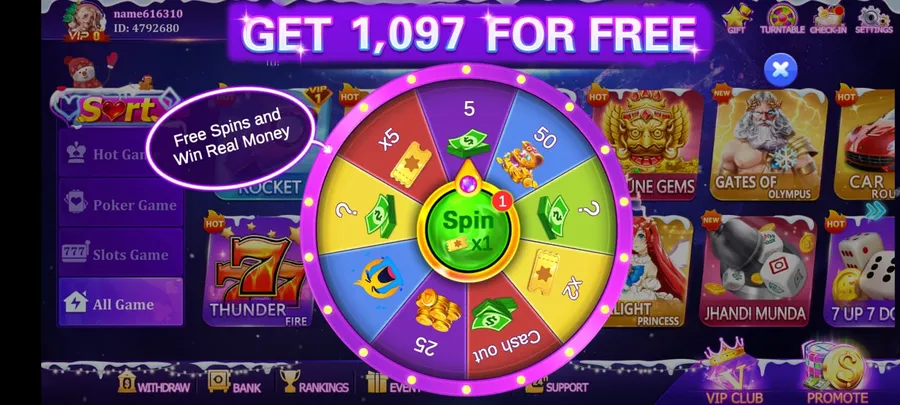
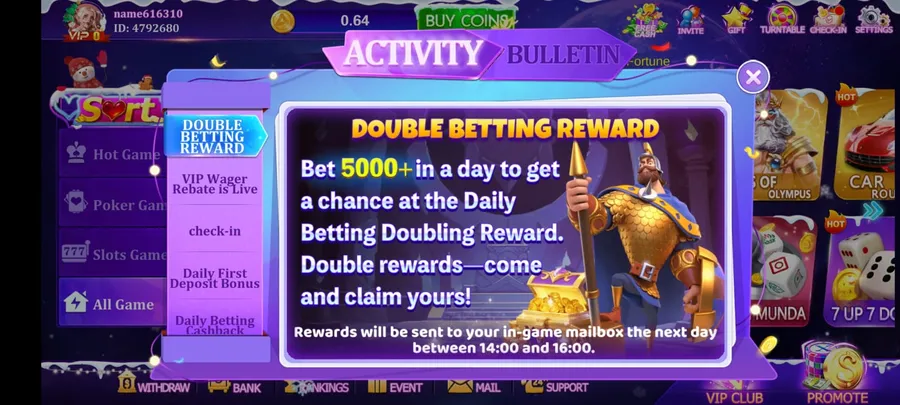
Here's a look at some of the screens you'll encounter once the Lucky97 APK is installed and you're signed in:
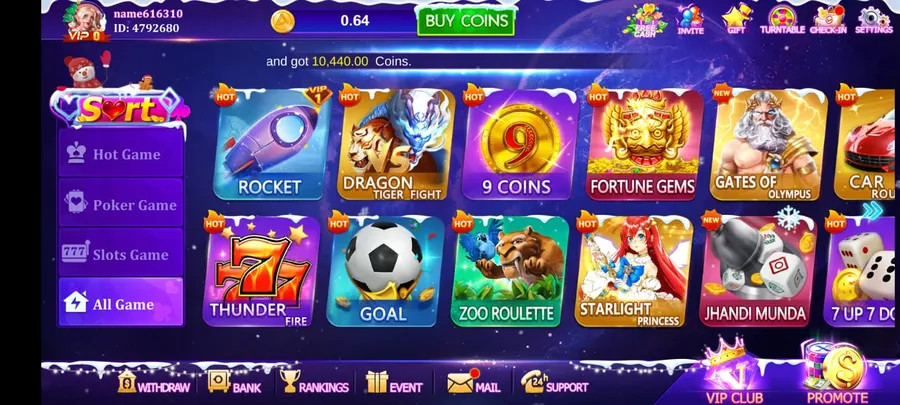
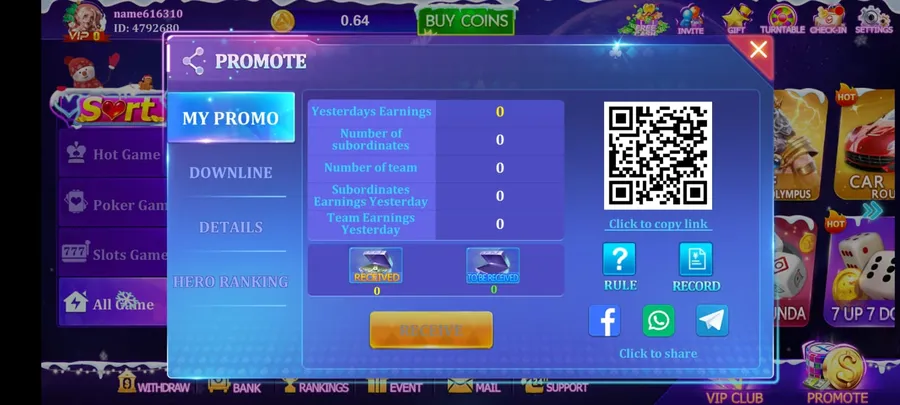
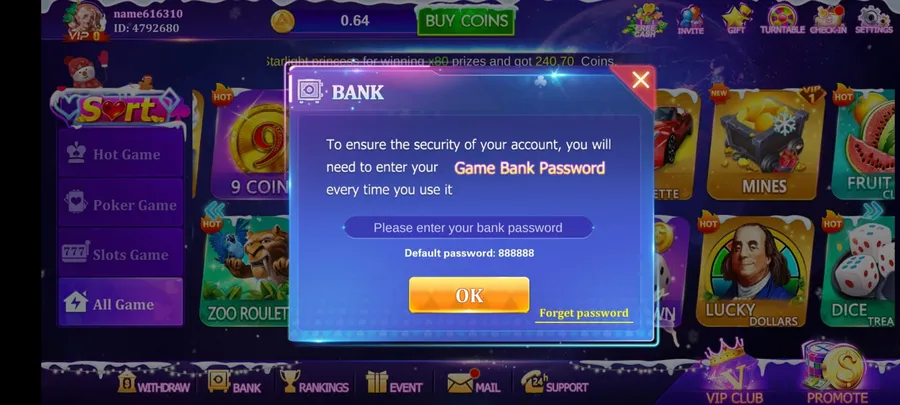
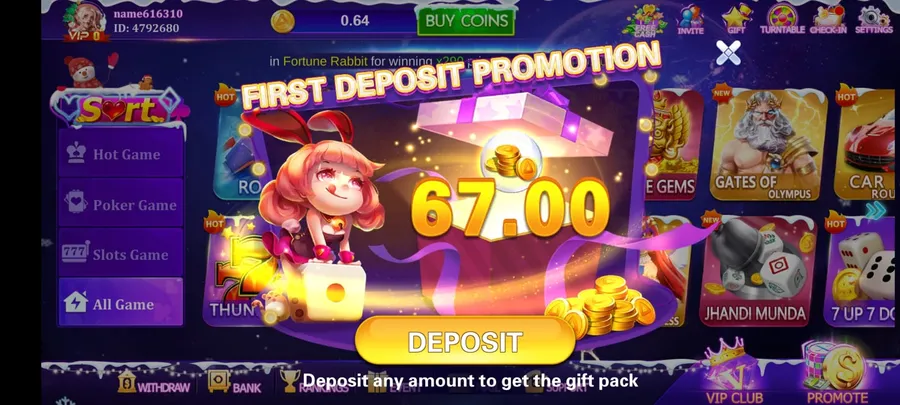
Frequently Asked Questions
Is it safe to install Lucky 97 from outside the Play Store?
Downloading an APK from a source you haven't used before always carries some inherent risk. Only install files from a link you trust, keep Play Protect scanning turned on, and avoid granting permissions the app doesn't clearly need for its features.
Why does my phone say "Install blocked" when I open the Lucky97 APK?
This message appears when the "Install unknown apps" permission is switched off for the browser or file manager you used to open the file. Open Settings, find that app under Special app access, and toggle the permission on before trying again.
Do I need to uninstall the old version before updating Lucky 97?
No. Installing a newer APK with the same package name over an existing installation normally updates the app in place and keeps your login session and local data intact, as long as the signing key hasn't changed between versions.
Will I lose my account if I reinstall the app?
Your account itself lives on the game server, tied to your registered phone number or ID, not to the app files stored on your device. Reinstalling and logging back in with the same credentials restores access to your existing account and balance.
What does "App not installed" mean and how do I fix it?
This generic Android error usually points to a signature mismatch with an older version, insufficient storage, a corrupted download, or a conflicting package name from another app. Clearing storage, redownloading the file, and removing very old versions typically resolves it.
Why do I get a parse error while installing?
A parse error means the APK file is incomplete or corrupted, often from an interrupted download, or your Android version is too old to read the package format. Redownload the full file on a stable connection and confirm your Android version meets the minimum requirement.
How much storage space do I need to install Lucky 97?
Keep at least 500MB to 1GB of free internal storage available before installing, since Android needs temporary space to unpack the package on top of the app's own installed size.
Does the app work on low-RAM phones?
Lucky 97 is designed to run reasonably on entry-level Android hardware. Devices with 2GB of RAM can generally run it, though 3GB or more gives smoother performance in busier lobby screens with heavier animation.
How do I completely remove the app and its data?
Go to Settings, Apps, select Lucky 97, tap Storage to clear data and cache if desired, then use the Uninstall button. This removes the app itself along with any files it stored locally on your device.
Can I install Lucky 97 on more than one phone?
Yes, the same APK file can be installed on multiple Android devices. You can then log in with the same account credentials on each device, one at a time, to access your profile and balance.
Where to Go Next
Once the Lucky97 APK is installed and you've logged in successfully, a few other pages on this site round out the setup process. If you haven't created an account yet, visit register for a full breakdown of the sign-up form and invite codes. For funding your account, the deposit page covers JazzCash and EasyPaisa options in detail, and the withdrawall page explains how to cash out winnings safely. If you'd rather play from a larger screen, our download for PC guide walks through emulator setup, and iPhone users should check download for iOS for platform-specific steps. For a broader tour of features once you're inside the app, the guide page is the best next stop.